

Ever wish the music you listened to on stream was not saved to your Twitch VODs? Thanks to a feature on Twitch and OBS this is possible. OBS can send two separate audio tracks to Twitch, one containing all of the audio you want your audience to hear, and the second containing only the audio you want saved to your VOD.
How to Set Up
The first step to setting up 2 separate audio tracks requires OBS to be connected to Twitch. This can be done under Settings > Stream > Connect Account.
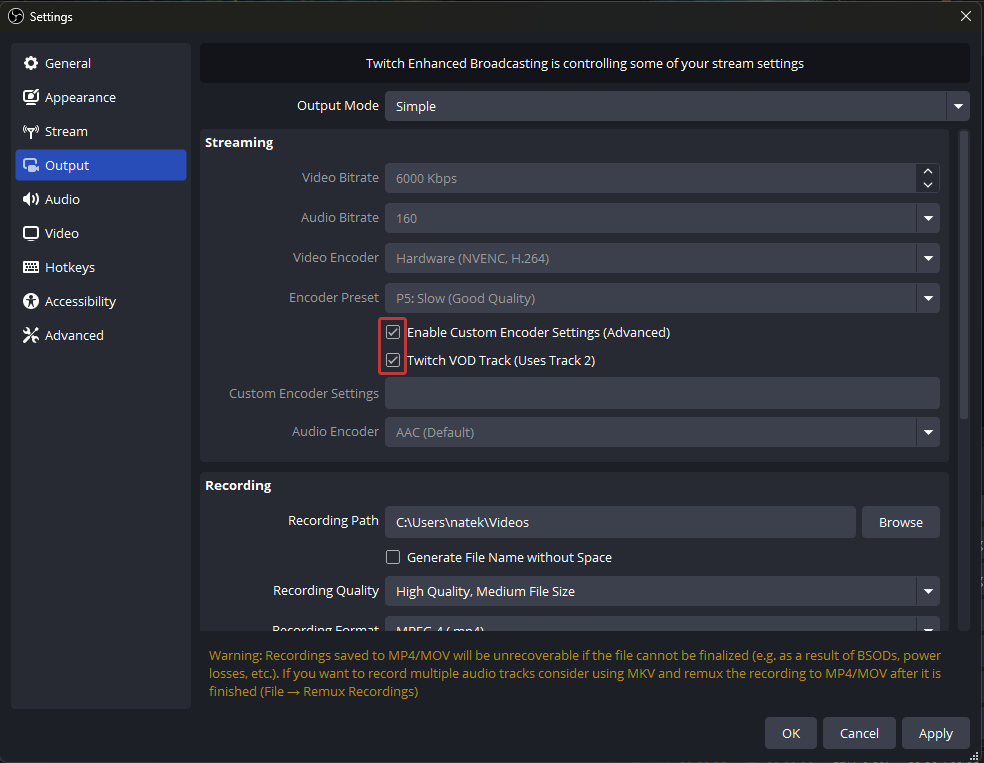
After you have connected your Twitch account to OBS, navigate to the Output tab. Here you need to make sure the “Enable Custom Encoder Settings” box is checked. Now check the “Twitch VOD Track” box that appeared from the previous step. Apply these settings and exit out of Settings.
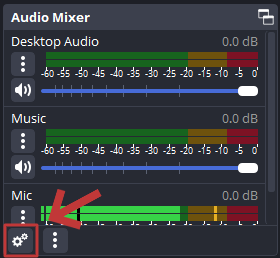
Under the Audio mixer dock, click the gear icon to open Advanced Audio Properties.
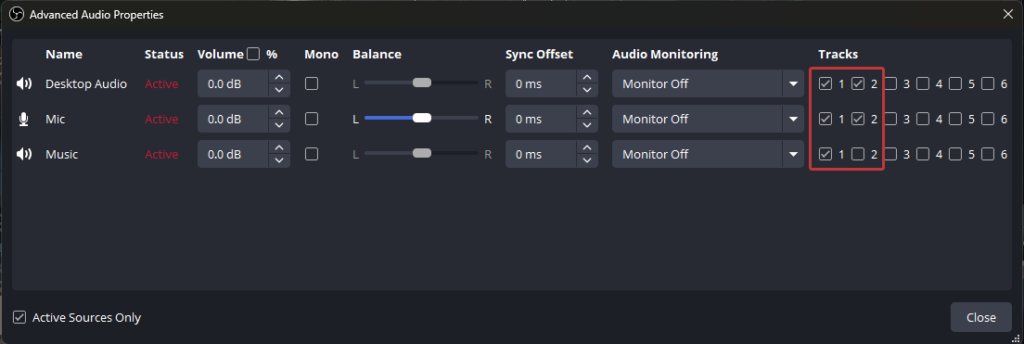
On the left you will see your audio sources and on the right are the tracks these sources are being sent to. By default, track 1 is your live audio and track 2 is your VOD audio. All audio you want sent to your livestream needs to be checked off on track 1. All the audio you want saved to your VOD needs to be checked off on track 2. In this example, to exclude the music source from your VODs, only track 1 is selected.